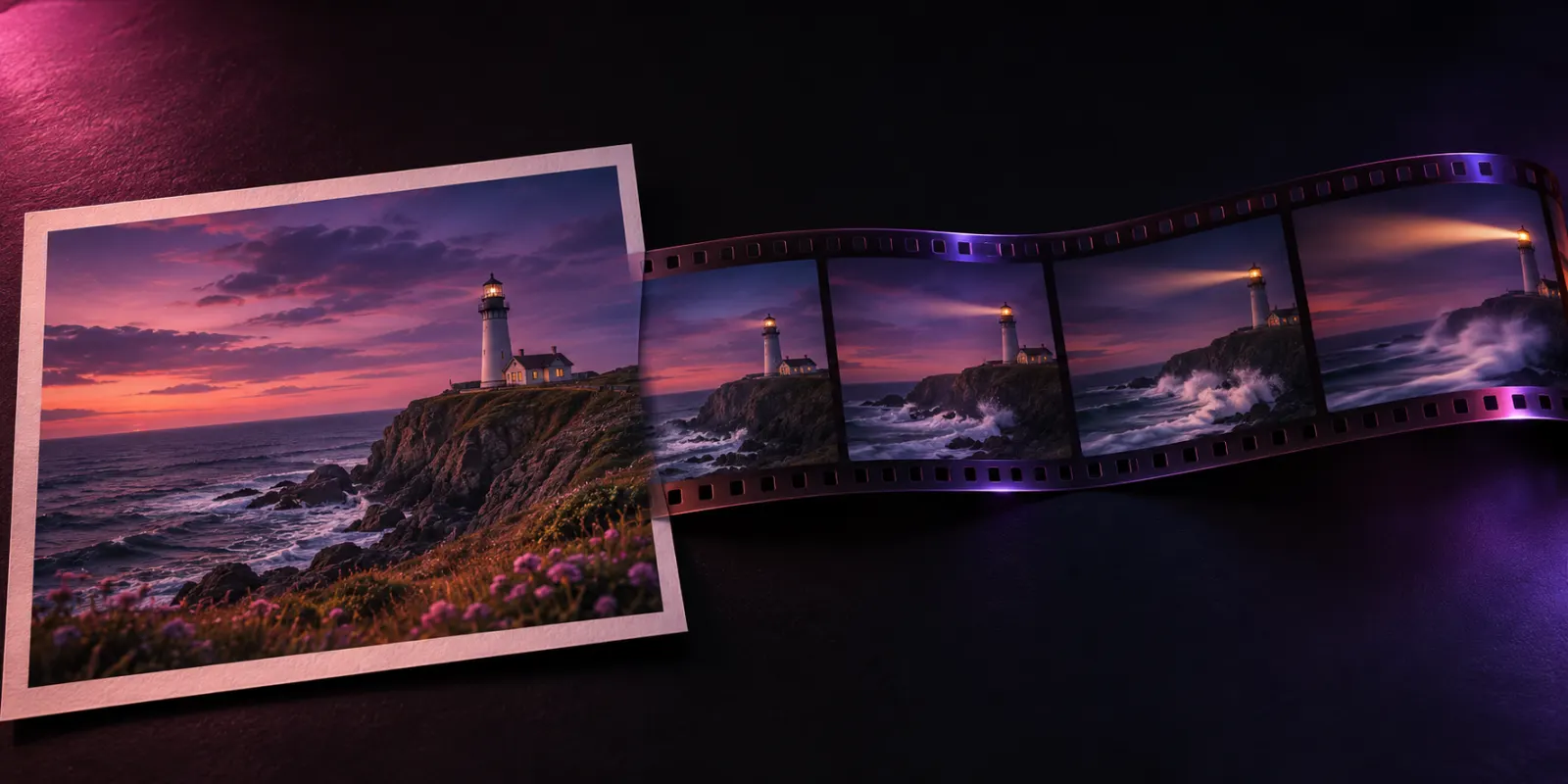
A still picture already holds most of a video: the subject, the light, the composition. Image to video AI supplies the rest, which is the motion. You give it a photo or an illustration and a short description of what should move, and it generates a clip that starts from your picture.
This guide covers the three ways to animate a picture in Unicorn Router's image to video AI, how to choose between them, and how to write prompts that give predictable results.
Three ways to animate a picture
| You want to… | Use | What you upload |
|---|---|---|
| Bring one picture to life | Start frame | One image and a motion prompt |
| Control where the shot ends | Start and end frame | Two images and a motion prompt |
| Make a character move like a real person | Motion control | A character image and a driving video |
1. Start frame only
This is the simplest option. Your picture becomes the first frame, and the model decides how the scene develops from your prompt: a camera push-in, waves rolling in, a character turning their head.
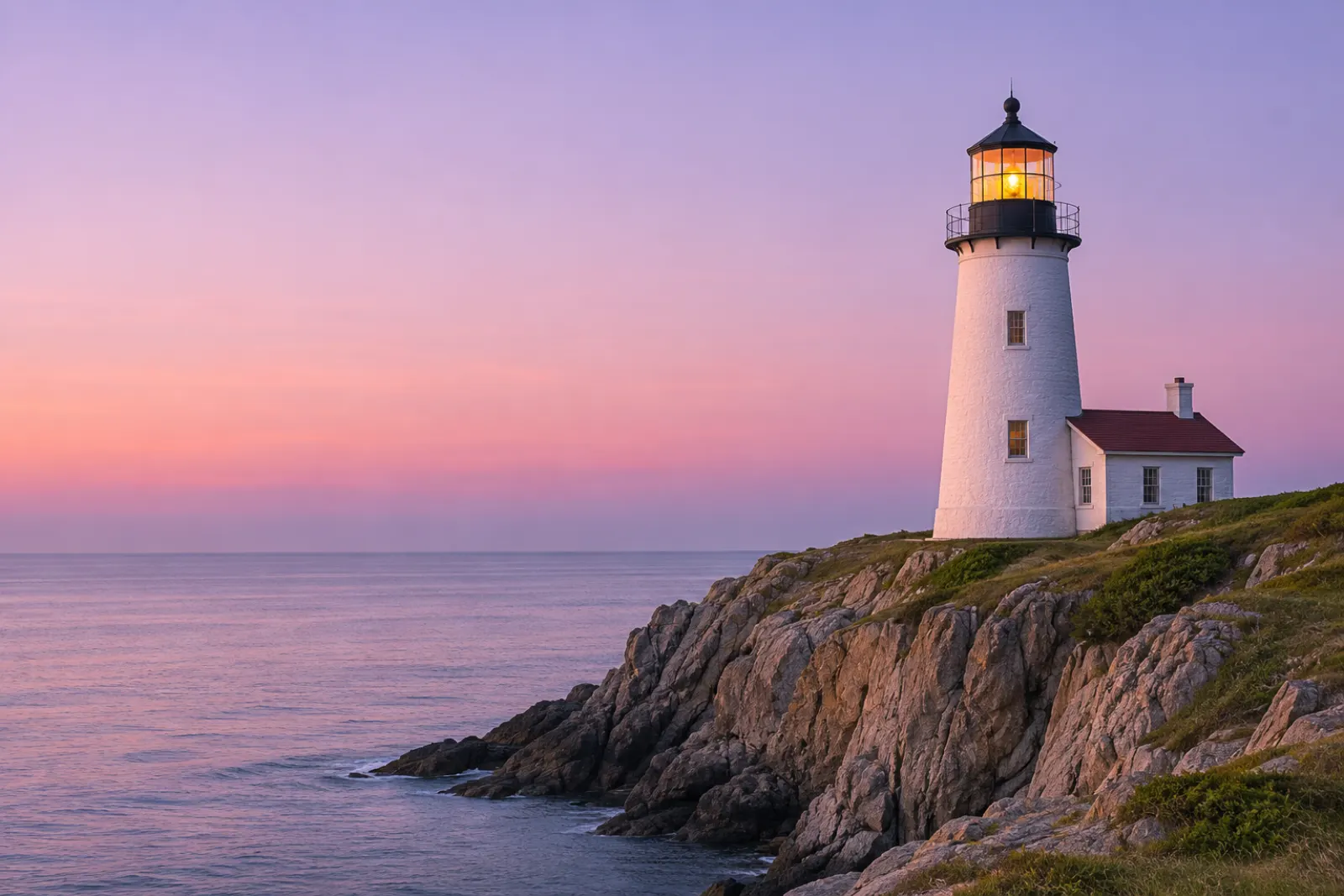
A picture like the one above works well as a start frame. The subject is sharp, the light is even, and there is space around the lighthouse, so a camera move has room to happen. A prompt such as "slow push-in toward the lighthouse, waves breaking on the rocks below, the light begins to turn" asks for one camera move and two small details, which is about as much as a short clip can show.
2. Start and end frame
When you need the shot to finish in a particular place, add an end frame. The model fills in the motion between the two pictures. This is the most reliable way to show a change over time: a flower opening, a room being tidied, a product box opening.
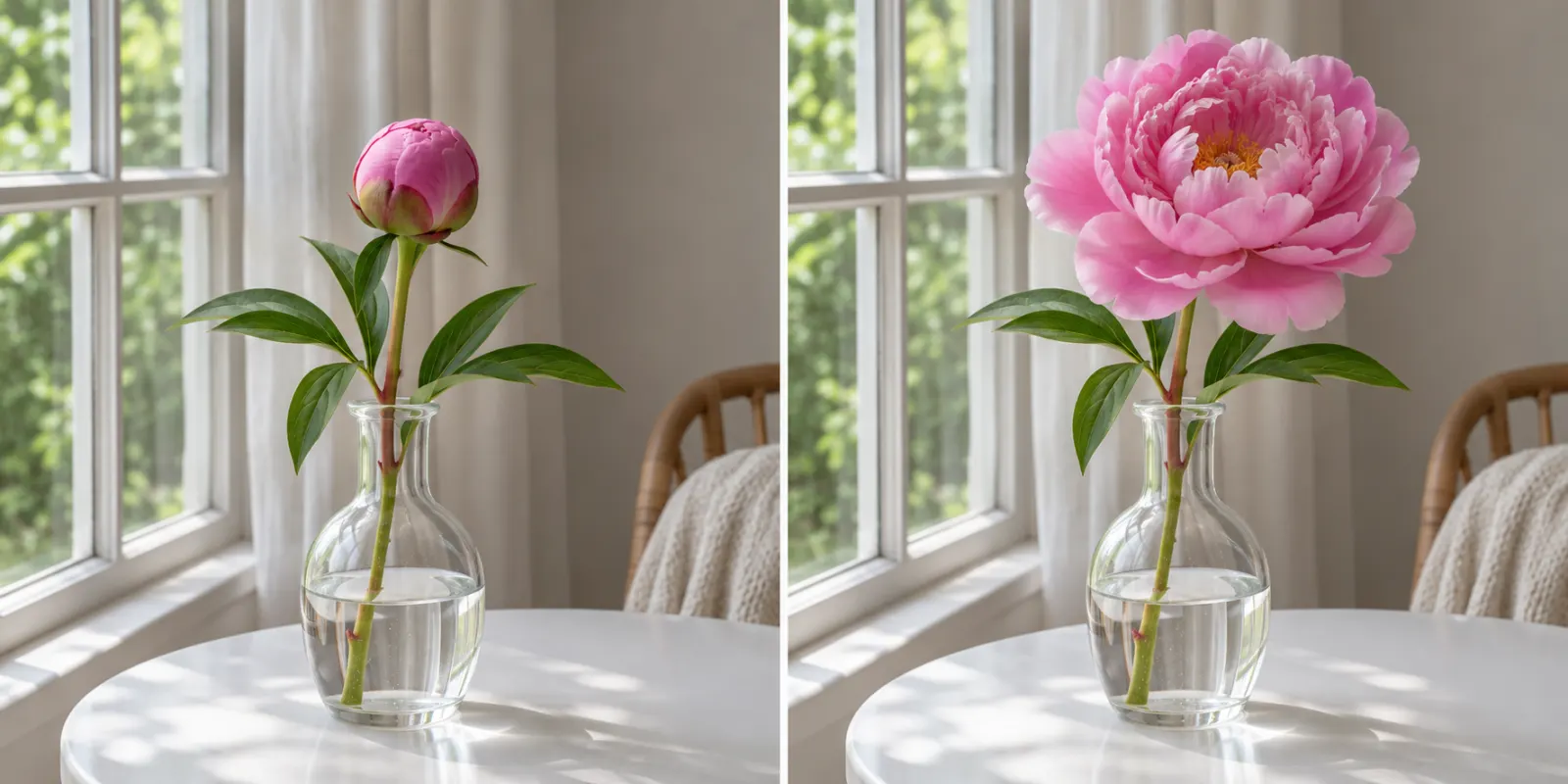
The two frames should match as closely as possible in everything except the change you want: same camera angle, same framing, same light. If the background moves between the two pictures, the model has to invent a camera move to explain it, and the result is harder to predict.
3. Motion control
Motion control takes the movement from a real video and applies it to a character image. You upload the character, such as an illustration, a 3D render or a mascot, and a driving video of a person moving. The character then performs the same movement.
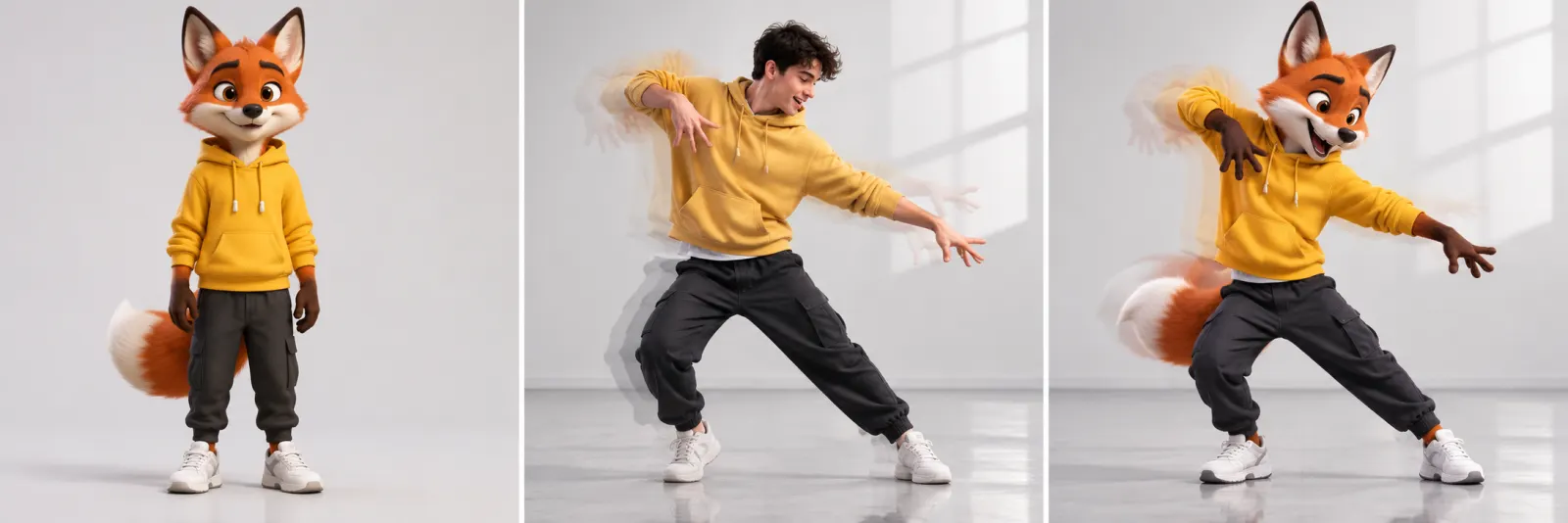
This is the right choice for dance clips, gestures and any movement that is hard to describe in words. The clip follows the length of the driving video, so trim the video to the part you need before you upload it.
Which model should you use?
Unicorn Router offers three image to video AI models. The tool only shows the options each model supports, so you can't pick a combination that won't work.
- Seedance 2.0 (the default) animates a start frame, with an optional end frame. Clips are 4 to 15 seconds, and it can generate sound together with the video. You can switch the sound off before you submit.
- Wan 2.7 also animates a start frame with an optional end frame. Clips are 2 to 15 seconds, which makes it handy for very short loops.
- Kling 3.0 Motion Control is the motion control model described above. It needs a character image and a driving video.
Resolution goes from 480p to 1080p depending on the model. 1080p is available on the Pro Max plan.
How to animate a photo, step by step
- Open the video tool. Sign in and open image to video. Seedance 2.0 is selected by default.
- Upload your start frame. Use a photo, an illustration or a render. Add an end frame if you want to control how the shot finishes.
- Describe the motion. Say what moves and how. Keep it to one camera move or one action.
- Set length, aspect ratio and resolution. Pick 9:16 for TikTok, Reels and Shorts, 16:9 for YouTube and websites, or 1:1 for feeds.
- Check the cost and generate. The credit cost appears before you confirm. The finished clip is saved to your history.
Writing motion prompts that work
The picture already describes what the scene looks like. The prompt only needs to describe what changes.
- Describe motion, not appearance. "A woman in a red coat on a bridge" repeats what the model can already see. "She turns to look over her shoulder as the wind lifts her hair" tells it what to do.
- One idea per clip. Ask for a single camera move or a single action. Three actions in five seconds usually means none of them looks right.
- Name the camera move. Push-in, pull-back, pan left, orbit, static camera. Plain film terms are understood well.
- Say what stays still. "The camera stays still while the steam rises from the cup" stops the model from adding a move you didn't want.
- Start short. Make a 4 or 5 second clip first. When the motion looks right, generate the longer version. This also keeps your credit use low while you experiment.
Common problems and how to fix them
| Problem | Likely cause | Fix |
|---|---|---|
| Faces or hands warp | The start frame is small, blurry or heavily compressed | Use a sharper, larger image with the face clearly visible |
| Nothing much happens | The prompt describes the scene instead of the motion | Rewrite the prompt as an action: what moves, and in which direction |
| The camera drifts when you wanted it still | No camera instruction in the prompt | Add "static camera" or "the camera does not move" |
| The clip jumps between the two frames | The start and end frames differ in angle or framing | Shoot or generate both frames from the same position |
| The character's movement doesn't match the video | The driving video is busy, dark or shows several people | Use a clear video with one person, filmed head to toe |
Frequently asked questions
Do I need an end frame?
No. The end frame is optional. With only a start frame, the model decides how the shot develops from your prompt.
Can I animate an illustration or a 3D render, not just a photo?
Yes. Any clear still image works as a start frame, and motion control is designed for characters such as illustrations, mascots and 3D renders.
How long can the clips be?
Seedance 2.0 makes clips of 4 to 15 seconds and Wan 2.7 of 2 to 15 seconds. Kling 3.0 Motion Control follows the length of the driving video.
Is image to video AI free?
The free plan covers text and image generation. Image to video needs a Pro or Pro Max plan, or pay-as-you-go credits. See pricing for details.
Can I use the videos commercially?
Content created on the Pro Max plan carries a commercial license. Content created on the Free, Pro and pay-as-you-go plans is licensed for personal use. Either way, make sure you have the rights to the picture and the driving video you upload.
Try it
Pick a sharp photo, write one sentence about what should move, and open image to video AI. Your first clip takes a few minutes.